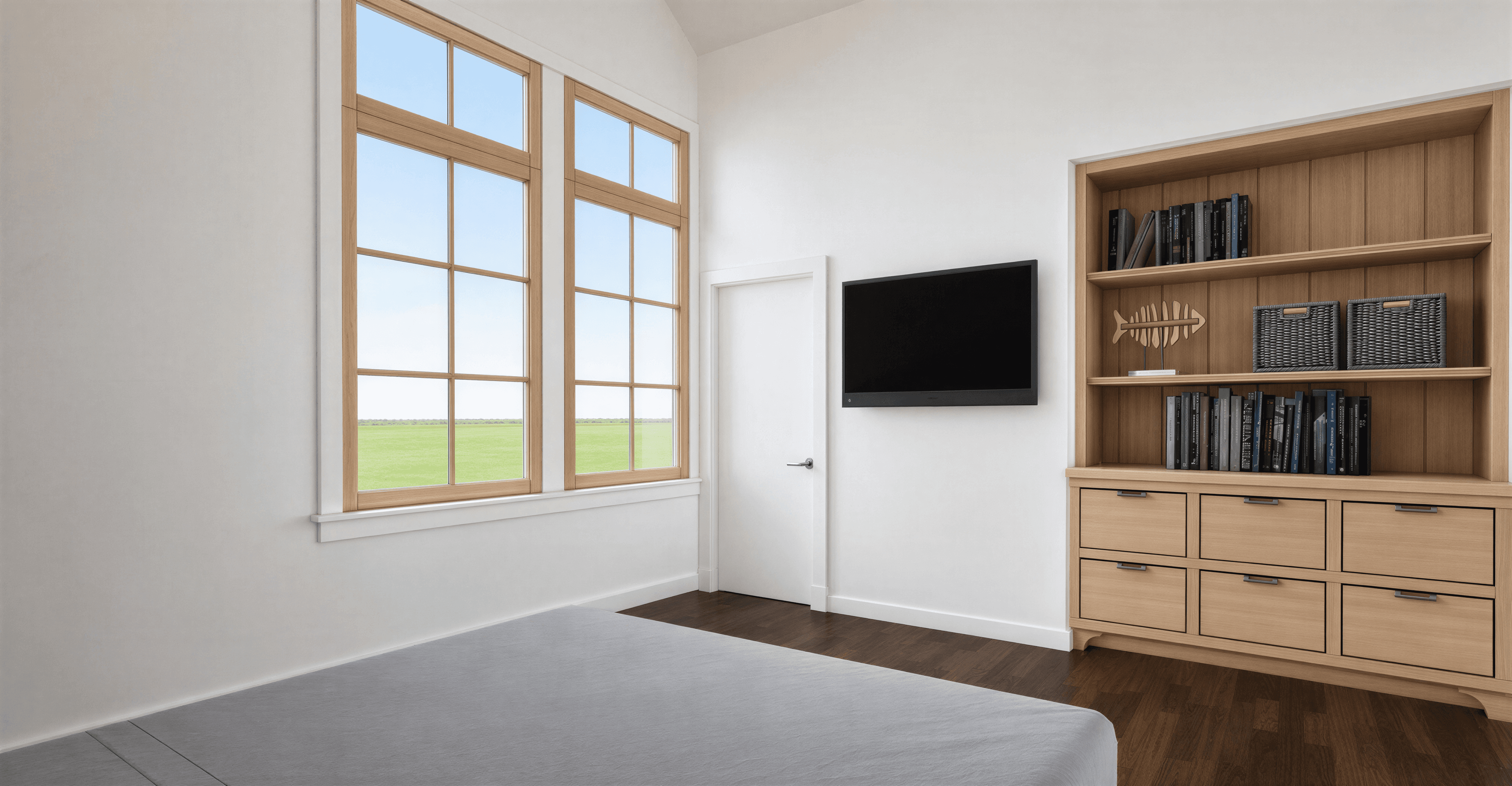
What this material is
How to render light oak
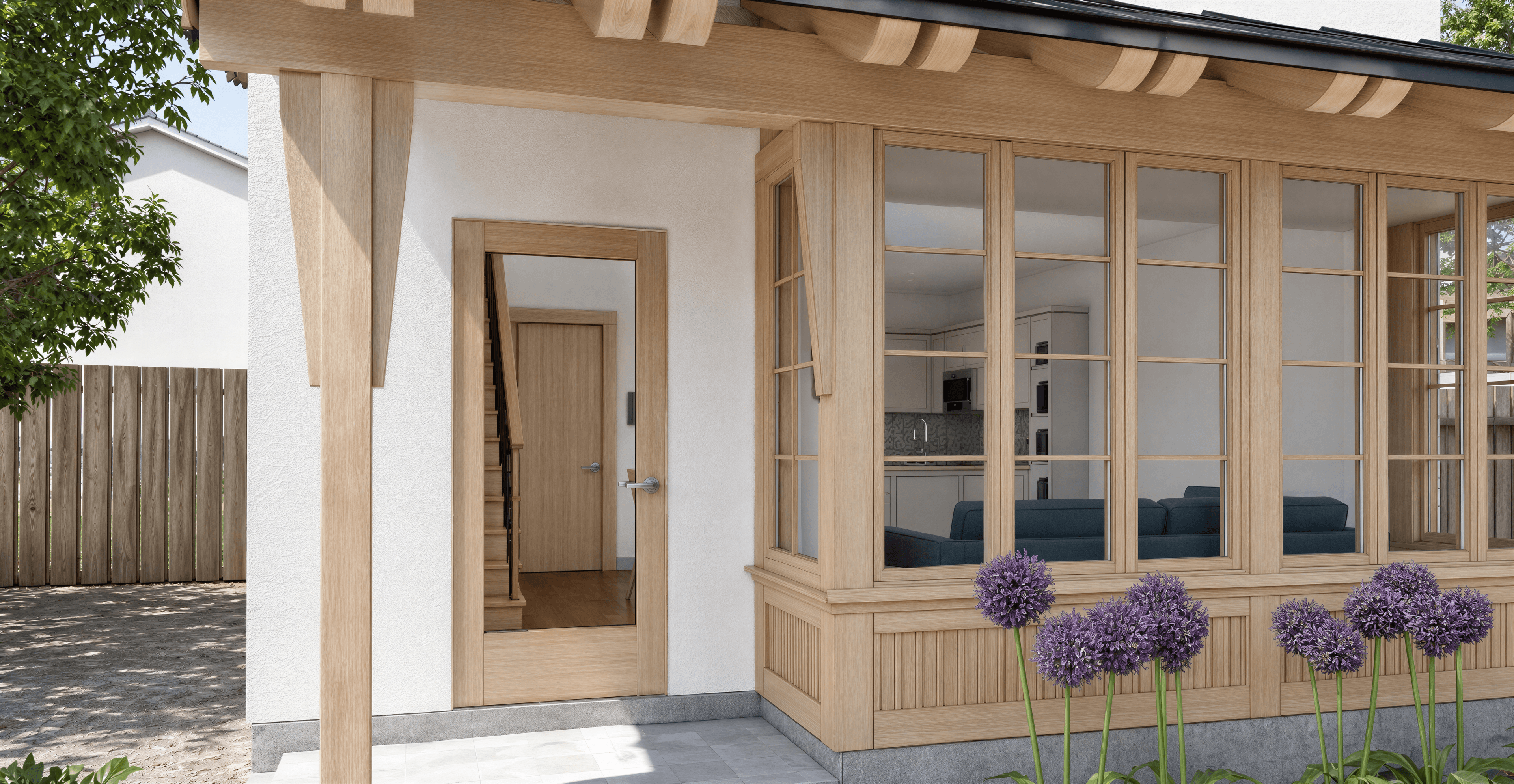
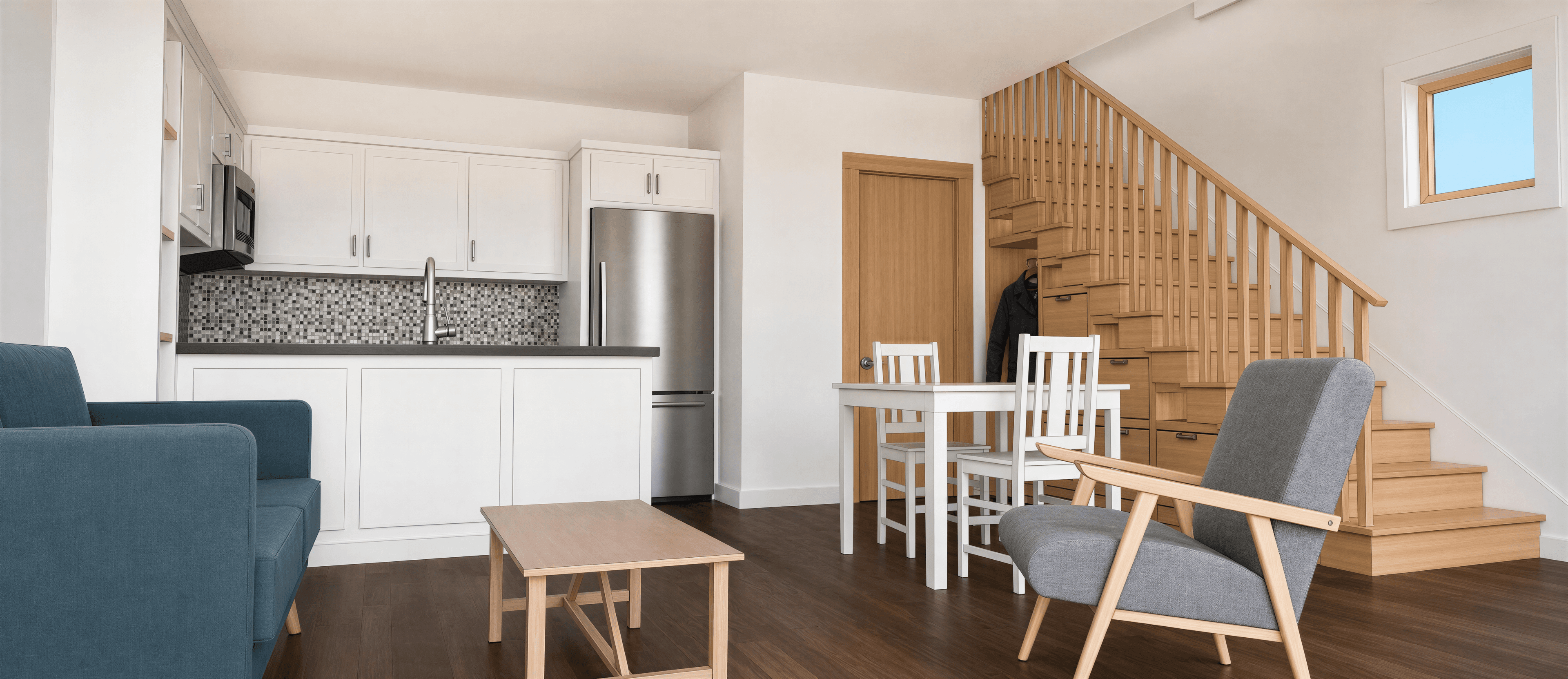
Light oak is the default pale wood of Scandinavian and adjacent contemporary interiors. The species is European oak, milled in wide planks and finished matte or lightly oiled — never lacquered, never glossy. It reads as warm without being yellow, structural without being heavy, and clean without being cold.
For AI rendering, the most important detail is the surface finish. AI tools will default to glossy or semi-gloss wood unless told otherwise, and a glossy light oak floor instantly destroys the Scandinavian/minimalist mood. Specify 'matte' or 'lightly oiled' in the prompt, and ask for 'visible but soft grain' to avoid getting either a flat painted look or an overdone wood-pattern texture.
Color tone matters too. Light oak's honest range is somewhere between bone and pale honey, with a faint pink-amber undertone in real samples. Pushing the prompt toward 'creamy' or 'golden' tips it toward yellow; pushing it toward 'gray' or 'whitewashed' tips it cool. The neutral target is what designers call 'natural oak finish'.
Pairs strongly with white painted plaster, soft natural light, linen, wool, and matte ceramic. Avoid pairing with dark contrasting wood — light oak earns its place by being the lightest wood in the room.
Prompt syntax
Add this phrase to your render prompt
Use this exact wording as part of your prompt to push the AI toward the correct material reading. Combine with a style direction and a lighting condition for a full prompt.
Light oak syntax
Paste into the prompt field in airender, or use as a starting point and tweak the details.
Color variations
Typical light oak tones
Click any swatch to copy the hex. Use these as reference points in your design tool or call out a specific tone in your prompt.
FAQ
Common questions
Frequently Asked
Questions
How do I keep light oak from looking yellow in the render?
Avoid 'cream', 'golden', or 'amber' in the prompt. Use 'natural light oak' or 'bone-toned oak' with a 'matte finish'. If the AI still pushes warm, add 'neutral undertone' or 'cool oak' to balance — this usually nudges the wood closer to natural without going gray.
Plank width and direction — does it matter?
Wide planks (8 inches or more) read more contemporary; narrow strip flooring reads more traditional. For Scandinavian or modern interiors specify 'wide-plank'. Direction usually doesn't need to be in the prompt unless you want it parallel to a specific architectural axis.
Matte vs satin vs gloss finish?
Matte for Scandinavian, Wabi-sabi, and Modern Minimalist. Satin for Coastal and slightly more traditional looks. Avoid gloss entirely — it ages the render visually and fights every style that uses light oak.